License Claim
Claiming a license prepares your Haptique OS instance for activation. Download Haptique OS from the official HOS downloads page before activation so the installed copy is eligible for the current license flow.
Claim a license
Section titled “Claim a license”- Open myHOS licenses.
- Enter your email address. myHOS sends a sign-in link to that inbox.
- Open the email and continue back to the Licenses and activation page in myHOS.
- Choose the available plan or promotion.
- Complete the claim or purchase flow.
- Save your claim code or continue directly to activation.
There is no separate password login for myHOS. Inbox access is the sign-in step, and after the first email-link sign-in the same browser should usually stay signed in for about 30 days.
If Haptique sends you a license, purchase, or activation email, the link in that message should bring you to this same Licenses and activation page in myHOS.
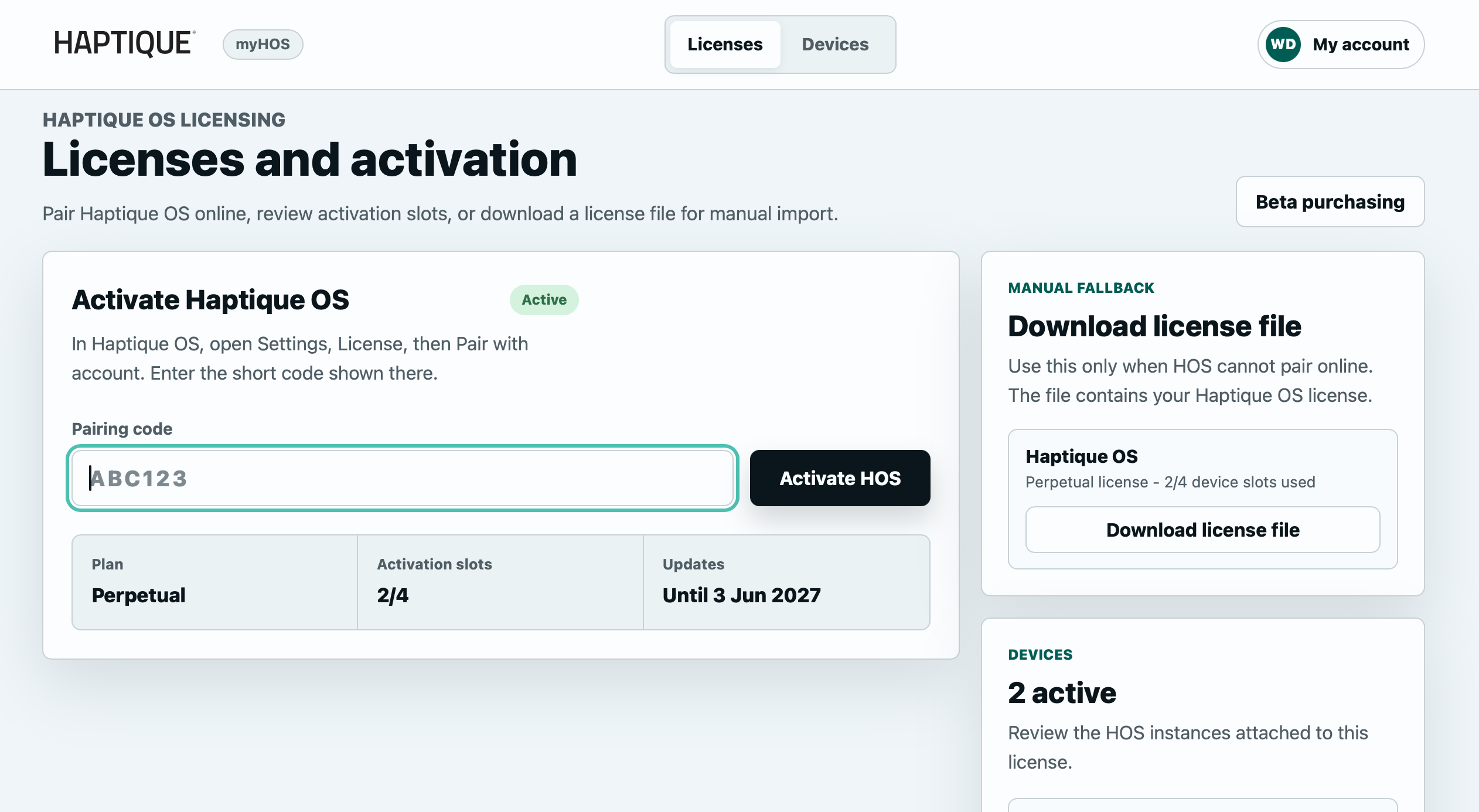
What the license includes
Section titled “What the license includes”One perpetual Haptique OS suite license activates Haptique OS and Haptique Music, with one year of Remote Control included. After year one, Remote Control is an optional renewal; local control continues without it. Fleet Server remains free and is separate from local suite activation.
See Plans for the public license model and launch offer.
Install Haptique OS from the official download, then activate from the browser interface or Activation flow.