RS90 with Licensed HOS
After RS90 is paired with a licensed Haptique OS controller, HOS devices can appear inside the existing RS90 Config App. These devices are powered by HOS, but they are organized from the same mobile app RS90 users already use for rooms, favorites, and device setup.
This page assumes RS90 is already paired. If not, start with Pair Haptique RS90.
- HOS devices show under the HOS device category.
- Favorites decide what appears quickly on RS90.
- Device actions still execute through the local HOS controller.
What licensed HOS adds
Section titled “What licensed HOS adds”A licensed HOS setup lets the local HOS controller expose supported logical devices to RS90 configuration. The Config App still manages the RS90 experience, but the device source is HOS.
| Area | What changes |
|---|---|
| Device source | Devices can come from HOS logical devices and integrations. |
| Config App | The existing RS90 Config App shows HOS devices in the device list. |
| Favorites | Heart icons mark devices that should be easier to reach from RS90. |
| Device actions | Commands route back through HOS for execution. |
| Setup model | HOS remains the controller. RS90 remains the remote. |
Add Logical Devices via Fleet Release
Section titled “Add Logical Devices via Fleet Release”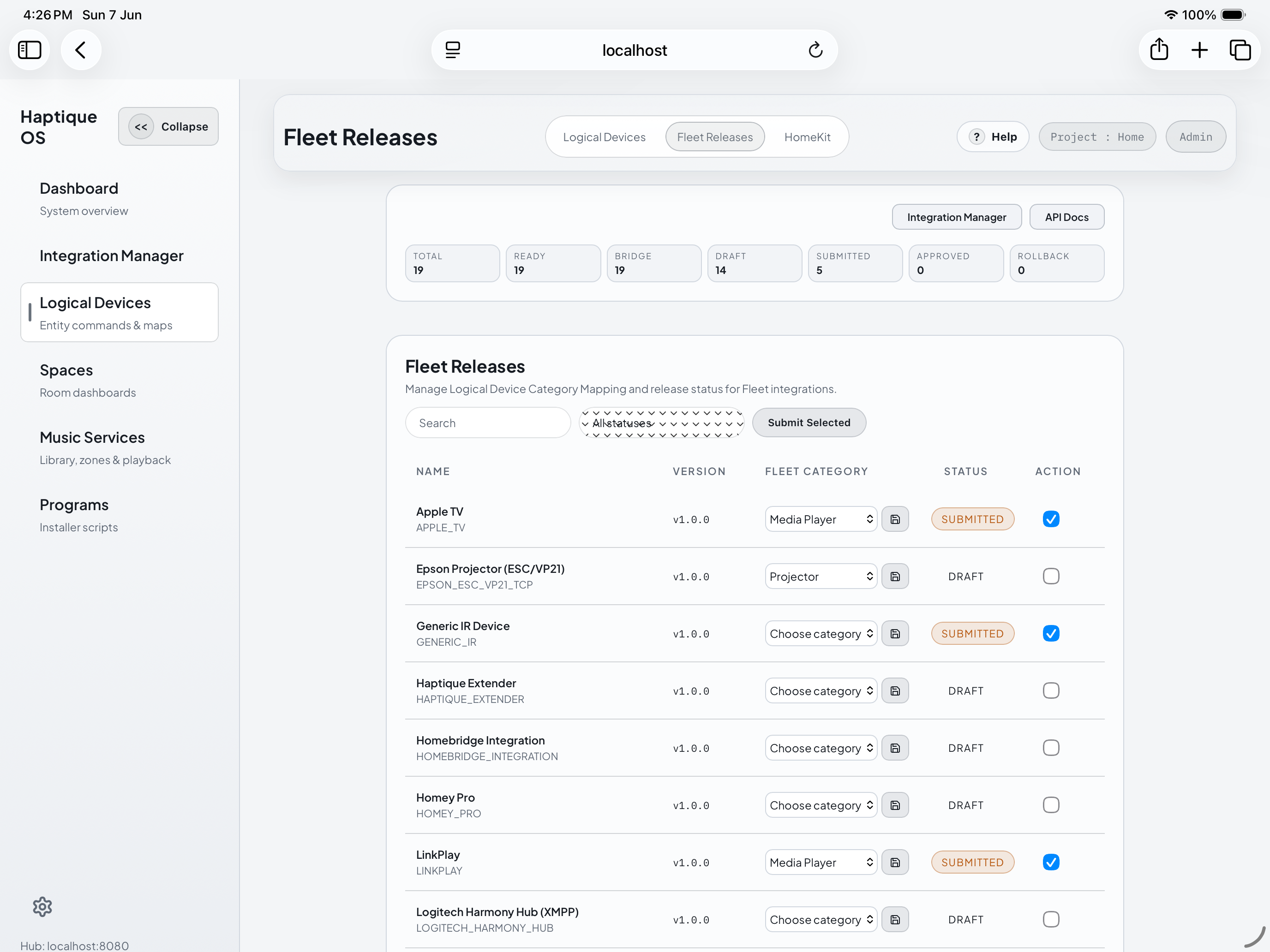
Select stable Logical Devices, assign categories, then submit the release.
Use a Fleet Release to decide which HOS Logical Devices become available to RS90. If you need the concept first, start with Logical Devices. Keep the release small at first: one room, a few proven devices, then expand after RS90 control is verified.
- Open the Fleet Release for the licensed HOS controller.
- Go to Logical Devices.
- Select the devices RS90 should control.
- Include only stable devices, scenes, bridges, or media endpoints.
- Publish or sync the release.
- Open Config App and check My Devices → HOS.
- Mark the devices RS90 should surface quickly as favorites.
HOS devices in Config App
Section titled “HOS devices in Config App”Use My Devices in Config App to review devices exposed from the licensed HOS controller. Select the HOS category chip to focus the list on HOS-backed devices.
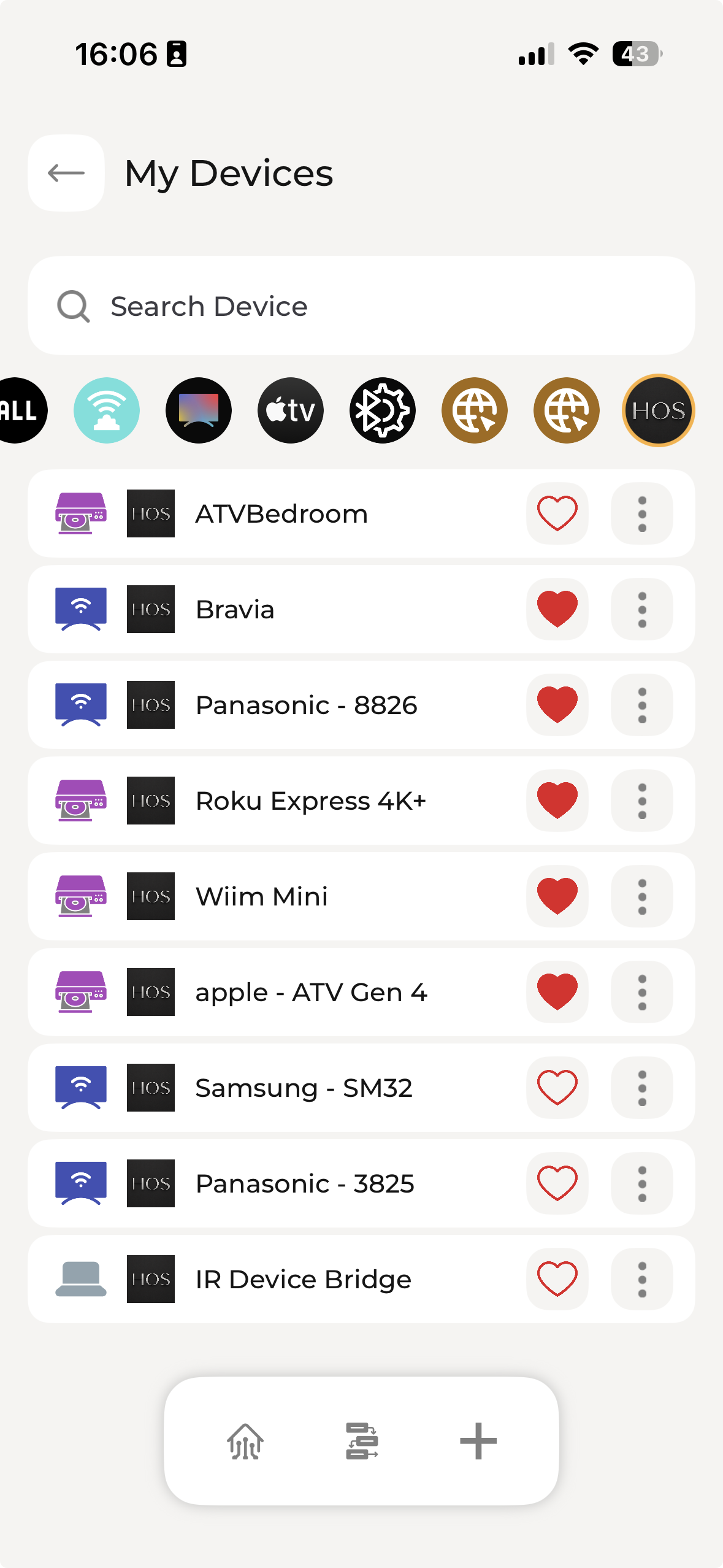
HOS-backed devices in Config App.
How to use this screen
Section titled “How to use this screen”- Open the existing RS90 Config App.
- Confirm it is connected to the same local HOS server used during pairing.
- Open My Devices.
- Tap the HOS category chip.
- Review the HOS-backed devices.
- Tap the heart icon for devices you want to keep close on RS90.
- Use the three-dot menu for device options.
- Test the device from RS90 after changing favorites or assignments.
What the HOS badge means
Section titled “What the HOS badge means”The HOS badge means the device is coming through the HOS path. The device may represent a TV, streamer, AVR, bridge, media endpoint, IR bridge, or another supported logical device.
The badge does not mean the command runs inside the mobile app. The mobile app configures RS90. HOS still owns device state, command execution, integration credentials, and local automation logic.
Recommended first setup
Section titled “Recommended first setup”Start with a small, proven set of HOS devices.
- Add one room or Space in HOS.
- Expose only the devices RS90 should control first.
- Mark the main TV, streamer, AVR, or bridge as favorites.
- Test each favorite from RS90.
- Add more devices after the first room works.
Good first devices:
- Main TV or display.
- Primary streaming device.
- AVR or sound device.
- IR Device Bridge.
- One media endpoint.
- One scene or room-level control.
Verification checklist
Section titled “Verification checklist”| Check | Expected result |
|---|---|
| HOS license | Controller is licensed and active. |
| Pairing | RS90 is paired to the same HOS server as Config App. |
| Device list | HOS category appears in My Devices. |
| Favorites | Hearted devices remain available after app refresh. |
| RS90 control | A real command works from the remote. |
| HOS state | HOS reflects the device state after RS90 sends a command. |
If HOS devices are missing
Section titled “If HOS devices are missing”- Confirm the HOS license is active.
- Confirm Config App is connected to the local HOS server, not cloud.
- Confirm RS90 is paired to the same HOS server.
- Confirm devices are visible and active in HOS.
- Confirm the device is exposed to the RS90-compatible path.
- Refresh Config App or sign out and back in.
- Restart RS90 if the device list does not update.
Keep Fleet and HOS clear
Section titled “Keep Fleet and HOS clear”Licensed HOS does not replace the hosted Fleet product. It adds a local HOS controller path for RS90. Fleet/cloud and HOS local can share concepts, but HOS remains the local controller and Config App remains the existing RS90 mobile configuration app.