Getting Started
Use this page before the longer reference sections. Haptique OS is licensed software that runs on a supported Mac, Linux, or Windows machine and acts as the local controller for the project. The goal is to get one working project live first: Haptique OS downloaded from the official HOS page, installed and licensed, one integration connected, logical devices visible, mobile apps signed in, and AI available for everyday commands.
Licenses are activated after you download your HOS copy from the official Haptique OS downloads page. Use that page for the current Mac, Windows, Linux, or Docker release, then activate the installed controller through myHOS or the local license screen. myHOS uses email-link sign-in rather than a separate password login. Copies obtained outside the official HOS download flow may not be eligible for activation.
First path
Section titled “First path”- Open the HOS downloads page and download the correct Haptique OS copy for the controller machine.
- Purchase or claim a Haptique OS license in myHOS.
If you are not already signed in, myHOS redirects you to the email sign-in flow. Open the email link, and myHOS returns you to the same Licenses and activation page rather than showing a separate direct login form. The screenshot and full walkthrough for that page are in License Claim.
- Install and activate Haptique OS on the controller machine.
- Create the first project for the home, showroom, or AV space.
- Add the first integration, such as lighting, climate, AV, HomeKit, or a supported IP device system.
- Convert real endpoints into logical devices with names users understand.
- Place those logical devices in Spaces, which are rooms or zones.
- Sign in to the mobile app with credentials created on the fleet server.
- Enable AI features where licensed and allowed.
License activation
Section titled “License activation”After installation, open Haptique OS on the controller machine and go to the local license screen. Use the same myHOS email address used to claim the license and complete the email-link sign-in flow, or enter the claim code if your license was issued with one. When the controller has internet access, activation completes online and the status should change to active.
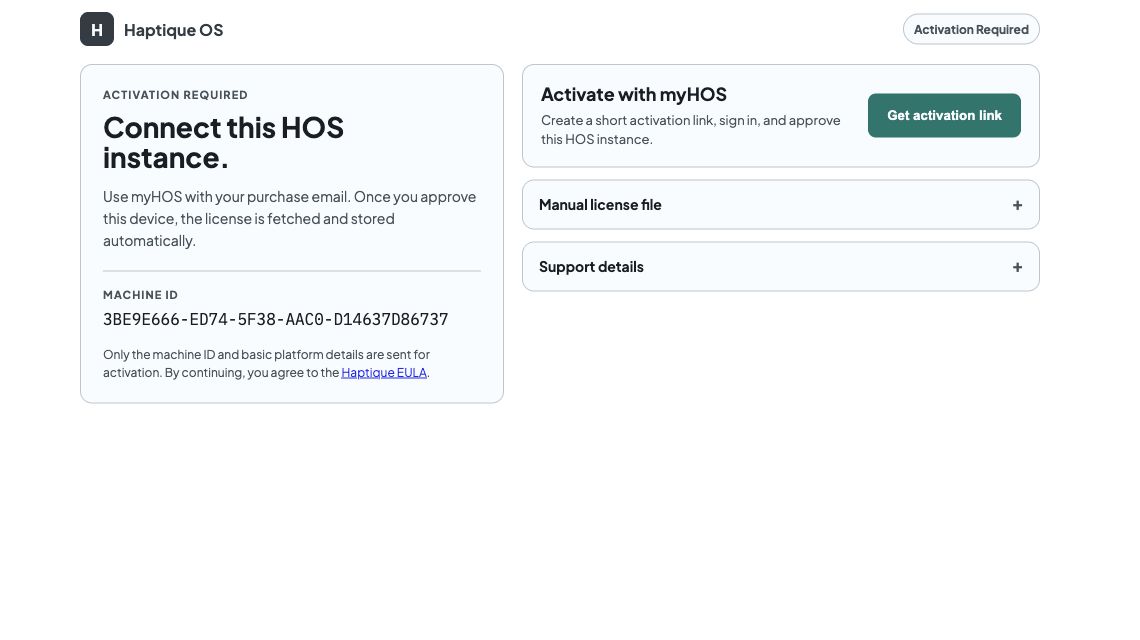
For supported offline installs, generate the machine identity from Haptique OS, request a signed license file, then upload that file in the local license screen. See Activation for the online flow and Request a License File for offline file activation.
Using AI
Section titled “Using AI”AI is useful after the first project model is clean. Set up Spaces, logical devices, scenes, and permissions before testing chat commands, then confirm that the same behavior works from the mobile app.
Supporting references
Section titled “Supporting references”- Download
- Installation
- License Claim
- Activation
- Request a License File
- Network Checklist
- Mobile Apps
- HOS Mobile App
Continue with First Project.